

…or, the Importance of Community

It’s pretty easy to sing the praises of GameDevHQ content. You don’t even need to take my word for it. Between the courses released on Udemy, and the free content now being released on YouTube, you can go see for yourself. What is less obvious and even more difficult to quantify is the community surrounding it. Right now, the GameDevHQ community is positively on fire. Between their new Accelerator program, their Alumni program and their open community (primarily supporting the Udemy courses), it’s actually a challenge to keep up.
But it’s a challenge worth accepting. Ignore the big success stories. Hopefully you’ll have one of your own soon. Focus instead on the little things, too numerous to count and often difficult to recall. Just as you can suffer death of a million paper cuts, you can build your fortune, one small gem at a time.
Let me show you an example of some of those gems.
Gem #1
When changing the Play Mode Tint color, if you are using Dark Mode, stay to the left on the hue box.
First of all, if you don’t know what the Play Mode Tint color is and why it matters, fire up Unity, then go to Edit -> Preferences -> Colors -> General -> Playmode tint. This changes the color of your IDE when you go into play test mode. The editor default does not change (or barely changes) and it is easy to start working away, not realizing you did not yet exit playmode.
I first learned of this by watching someone else’s screen replay. However, I did not give much thought to what color to actually use. The only thought I gave it was to use green, rather than the red I’d seen demonstrated. It wasn’t until recently the comment above was made and it wasn’t even a planned part of the lesson. The only reason it came up was because the webinar was “starting from scratch” and Unity 6 had just come out. So, the person doing the demonstration had not already gone through all their usual setup yet. So, we saw it happen live and the little throw-away comment above sent me off on a minor tailspin.
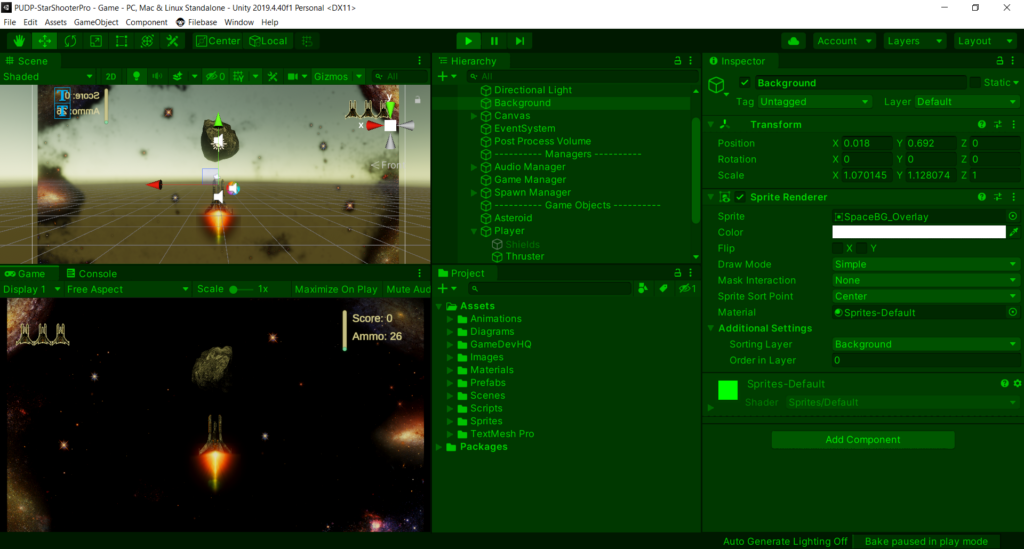
My screen, before…
after…
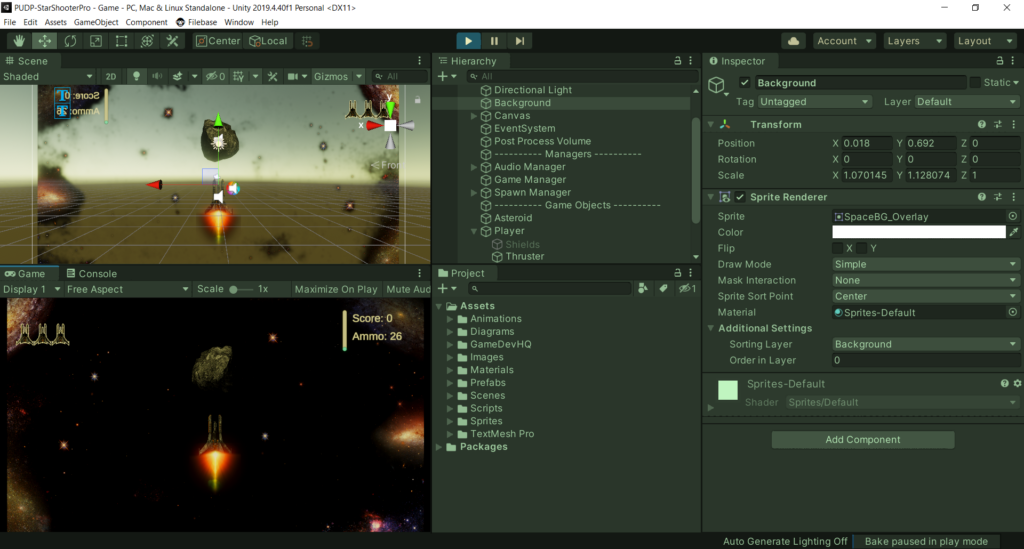
Depending on what device you are viewing this article on, the difference may not be as dramatic as on my screen. But the difference positively floored me. In fact, I think had I been told this, without seeing it, I might not have bought into it.
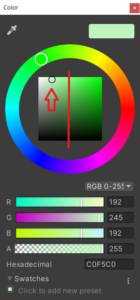
Why does this matter? Originally, all I wanted was to make it clear I was in play mode (aka, changes don’t save). But at that time, I really didn’t make runtime changes, so being a bit blurry and hard on the eyes was a bonus as it actively discouraged me from trying to make changes.
Now however, I’ve moved far enough down the road I am actually starting to consider balance and level design. I’ve even made specific design changes so values are available in the Inspector. I am finding it increasingly valuable (and more efficient) to start the game play and change values live. When I find the ones I want, I can make note of them and make the changes permanent, only after figuring out the ones I want.
So, the key again, is stay to the left as shown in the color selector.
Gem #2
Order of operations matters for performance, not just mathematically.
Consider the following code:
private void Update()
{
    transform.Translate(new Vector3( Input.GetAxis("Horizontal")
                                   , Input.GetAxis("Vertical")
                                   , 0
                                   ) * Time.deltaTime * currentSpeed );
}
It is simple player movement, based on keyboard input. It is presented in this manner for a very specific reason. Initially, transform.Translate() is introduced with a simple, hard coded Vector3 value. Something like transform.Translate(new Vector3(1,0,0)) which rapidly moves the player game object off the screen to the right. It is then explained this code runs up to sixty times every second and the default unit of movement in Unity is one meter. Thus, as soon as you hit the play button, the game object flies off sixty meters to the right.
Next, the property Time.deltaTime is introduced. This is the time between each frame and thus each execution of our statement. The end effect is it slows down our player object to a speed of one meter per second. Of course, this is too slow, so like Goldilocks, we try a third option of currentSpeed. If we set it to the value of three, our player will now move at three meters per second.
Only after working up to and combining these three ideas do we introduce how to capture user input.
The problem? Anything that runs sixty times every second can quickly become a performance sink. The first problem is the first value in the math problem is a Vector3. This means Time.deltaTime must be multiplied by all three values in the Vector3. Then, all three of those values must again be multiplied by currentSpeed. That’s THREE more multiplications. On a one-time pass, you’ll never notice this. Running it sixty times a second, you still might not notice it initially. However, when you start adding in more and more of these, they start to add up.
What other performance hampering paper cuts might you commit, you may ask? How about declaring a new Vector3 variable, assigning it and destroying it every sixty seconds? You can’t get out of the assignment part. But, performance-wise, it is probably better to pull the declaration of this variable out and just reuse it.
And both of these errors were committed in the same line of code! So, perhaps an improvment might be the following:
private Vector3 playerDirection = Vector3.zero;

private void Update()
{
    playerDirection.x = Input.GetAxis("Horizontal");
    playerDirection.y = Input.GetAxis("Vertical");
    transform.Translate( playerDirection * (Time.deltaTime * currentSpeed) );
}
The above code does two things. The parentheses around (Time.deltaTime * currentSpeed) forces that calculation to happen first. That reduces our multiplications from six to four. By using playerDirection and initalizing it once at the class level, we eliminate the new/destroy sixty times per second and replace it with two simple assignments.
Going a bit further, one might theorize additional optimization.
private Vector3 playerDirection = Vector3.zero;
private float   frameSpeed      = 1f;

private void Update()
{
    frameSpeed        = Time.deltaTime * currentSpeed;
    playerDirection.x = Input.GetAxis("Horizontal") * frameSpeed;
    playerDirection.y = Input.GetAxis("Vertical")   * frameSpeed;
    transform.Translate( playerDirection );
}
Why might this be better still? First of all, since we are actually making a 2D game, the z-axis of our Vector3 is always zero, so that is a wasted calculation. Changing this, we can go from four multiplications to just three. Finally, and this is just speculation mind you, but I suspect matrix math is not just expensive because all values in the matrix must be multiplied, but also because they must be unpacked, multiplied and put back. The above code is all floats times floats. No complex data structures.
Of course, we’ve all heard the warning against premature optimization and surely, the above should be properly analyzed before being adopted. On the other hand, certain things border on being a no-brainer. Top of that list, forcing the order of operations to avoid repeating expensive operations (like matrix math). Even if the gain is negligible in your use case, doing it creates no bizarre or obtuse code leaving later programmers scratching their heads. Even if they don’t recognize the optimization, they recognize the operation.
What’s really useful from all this is simply adding this line of thinking to your coding process. If nothing else, when you find you DO have a performance issue, you already have a list of places you’ve thought might need changing. Those spots will be where you start.
And there’s more, so much more. But putting even two of the little mind bombs from the last couple days into one article has made it a lengthy read. Hopefully, I will have time to share some more. But my better suggestion to you, is find a code-buddy, or better yet a group. Code, share, and even trash-talk each other for fun and sport. We already know we’re supposed to learn from our mistakes. But you can’t learn from mistakes you don’t know you are making and often times, you won’t know about those mistakes until you see someone else NOT making them.