
I’ve had a long-standing desire to return to my command-line roots. It may be just rose-tinted nostalgia, but it sometimes seems I spend an inordinate amount of time waiting for my screen to redraw some very pretty, but very unnecessary graphically enhanced experience. When working from a thirteen-year-old laptop, this can take on a bit more urgency. Every time my laptop fan spins up and starts pushing hot air out the left side vents, I start to wonder if I should take the time again to go retro.
One of the things that came up on one of my digital walk-abouts, was GH-Dash, a terminal window GitHub interface. Unfortunately, it horribly misfired and the screen redraw in both PowerShell and CMD terminals on Windows 10. Searching around led me to an unexpected solution, Windows Terminal. Now, both of these are subjects for further discussion, but the configurability of Windows Terminal lead me to an amusing side trip.
Windows Terminal can be configured with a Retro Command Prompt look.
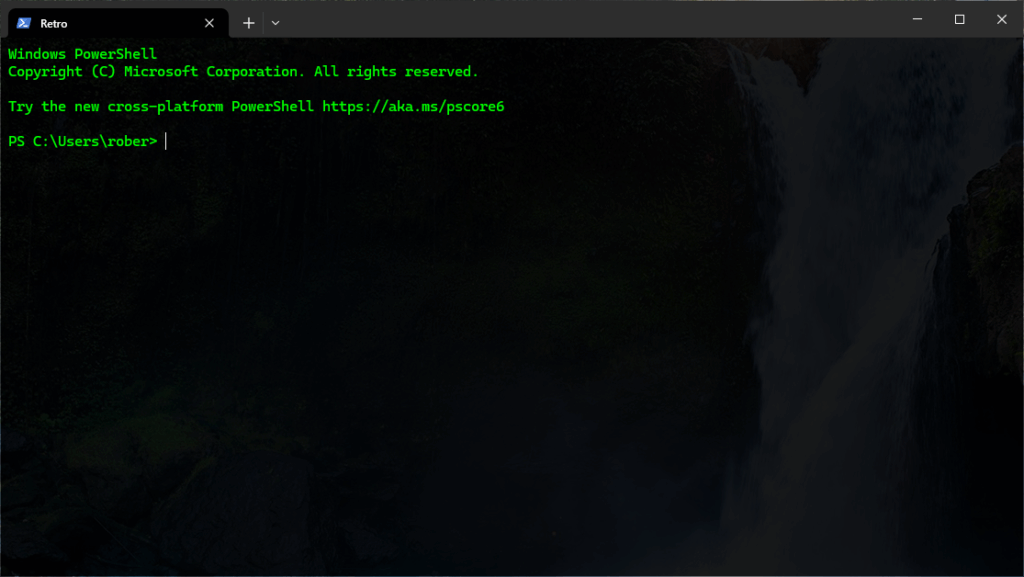
The initial setup is straightforward and described in the article above. I even added a little flare by adding transparency to the background. A little old and a little new.
But it turns out there are a few flaws. It seems turning everything green can cause problems in more complicated terminal applications.
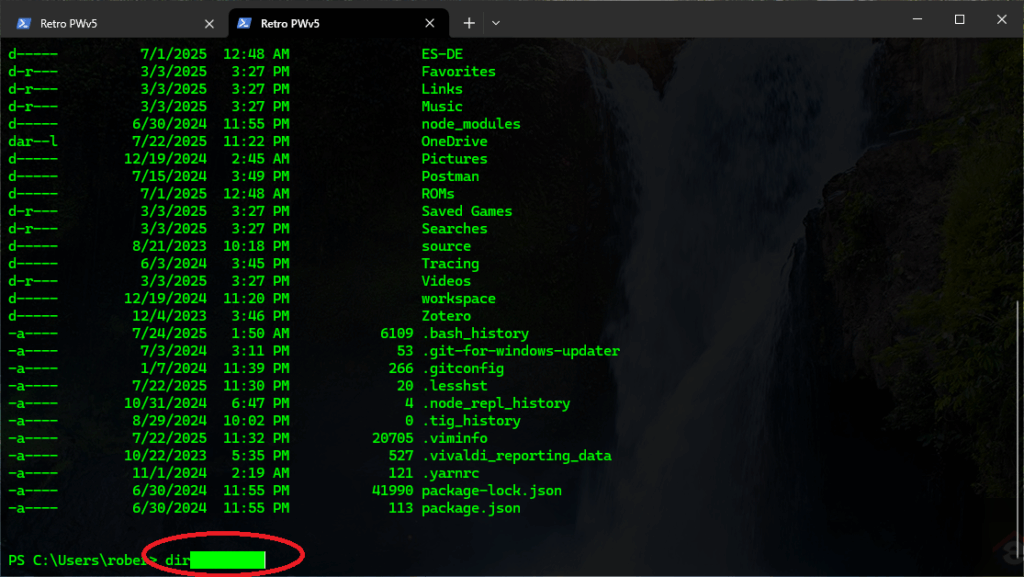
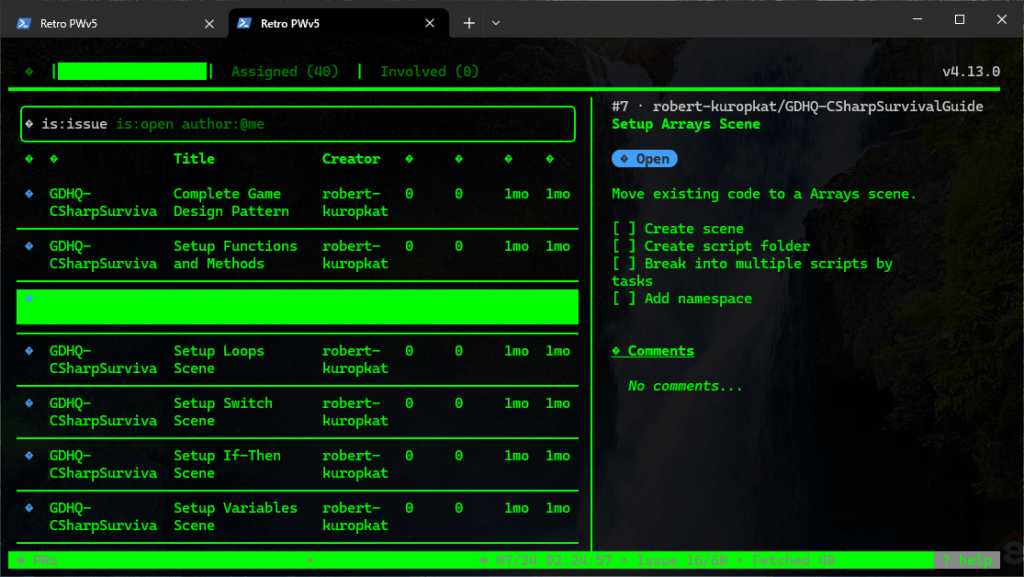
As you can see, the foreground and background colors of selected text are the same and therefore unreadable. It turns out, these two images show different results of the same problem. The fix takes some experimentation.
Now, some quick Googling will lead you to discover that the issue in image one (the red circled one) is due to a bug in Readline for Windows. This bug was fixed in Windows PowerShell v6 but Windows 10 has PowerShell v5 installed. Now, this can be fixed by installing an updated version of Readline. It can also be fixed by updating Windows PowerShell which is currently at v7.5. Which partially worked.
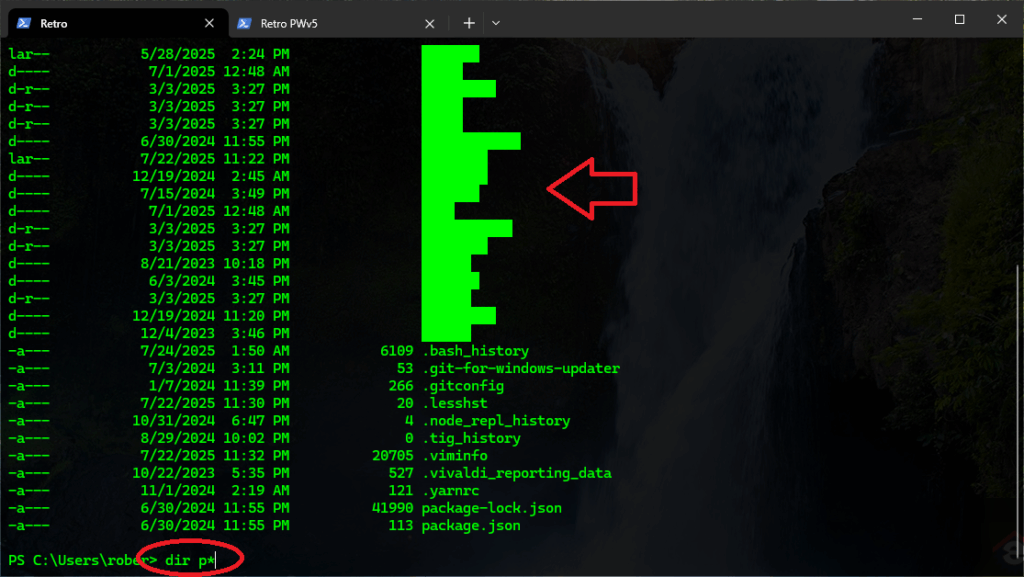
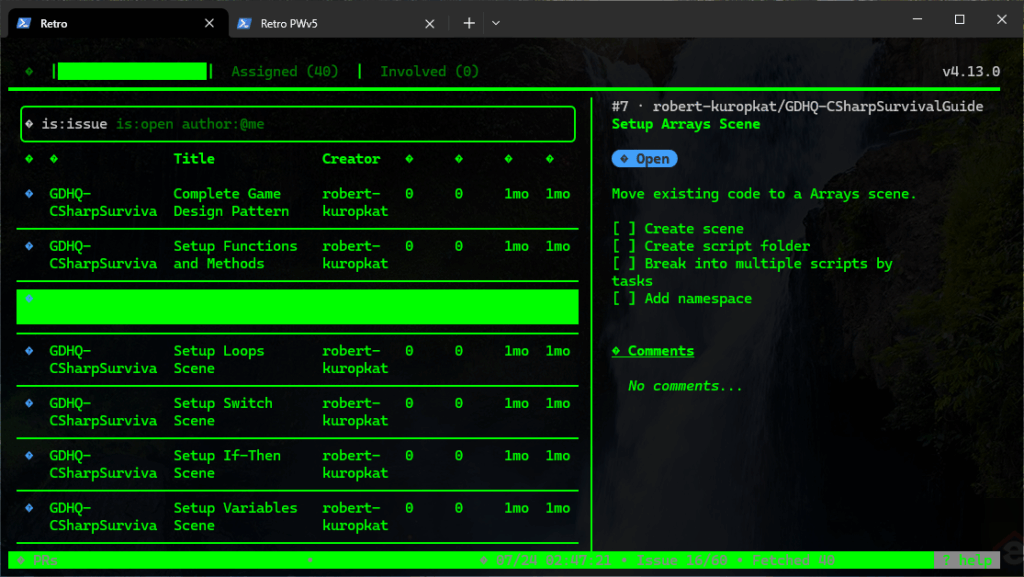
As you can see, the command line highlighting is fixed, but a new highlighting problem is created and the display issues in gh dash are not changed at all. The problem is in the related configuration for the settings.json file recommended by the Microsoft article. Namely, the color scheme definition.
    "schemes":
    [
        {
            "background"          : "#000000",
            "black"               : "#00FF00",
            "blue"                : "#00FF00",
            "brightBlack"         : "#00FF00",
            "brightBlue"          : "#00FF00",
            "brightCyan"          : "#00FF00",
            "brightGreen"         : "#00FF00",
            "brightPurple"        : "#00FF00",
            "brightRed"           : "#00FF00",
            "brightWhite"         : "#00FF00",
            "brightYellow"        : "#00FF00",
            "cursorColor"         : "#FFFFFF",
            "cyan"                : "#00FF00",
            "foreground"          : "#00FF00",
            "green"               : "#00FF00",
            "name"                : "Retro Terminal",
            "purple"              : "#00FF00",
            "red"                 : "#00FF00",
            "selectionBackground" : "#FFFFFF",
            "white"               : "#00FF00",
            "yellow"              : "#00FF00"
        }
    ],
The problem is, and there may be a better way to figure it out, is we do not actually know which color each application has chosen for which feature. The good news is, Windows Terminal reads the settings.json file dynamically and in real time. So, changes to the file are immediately reflected in the terminal window. That makes it a process of elimination effort to open the desired application, open the settings.json file, make a change and see if it works.
Eventually, changing the following:
    "schemes":
    [
        {
            "blue"                : "#004400",
            "brightBlack"         : "#004400",
            "brightWhite"         : "#FFFFFF",
            "selectionBackground" : "#00BB00",
            ...
        }
    ],
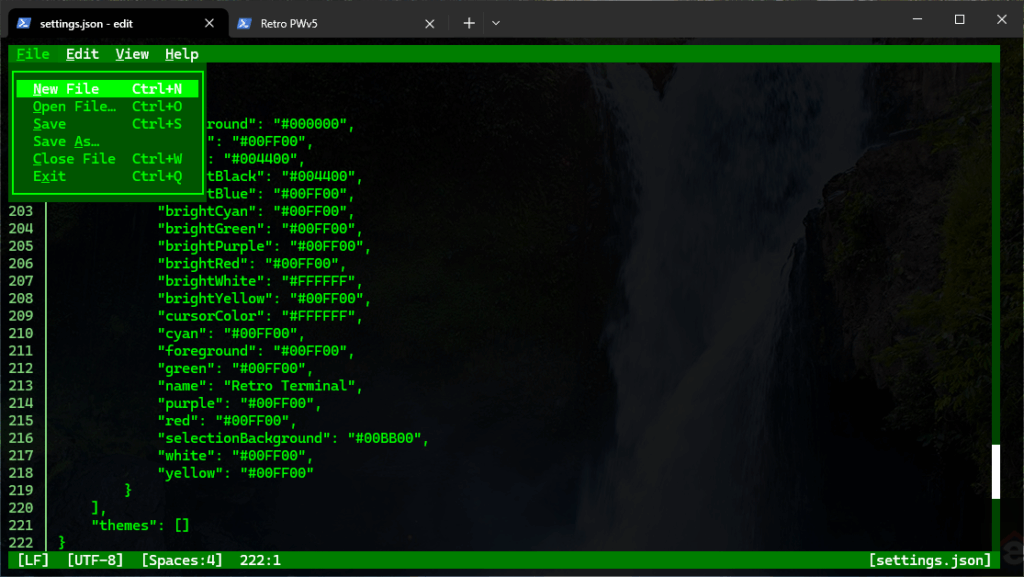
Results in:
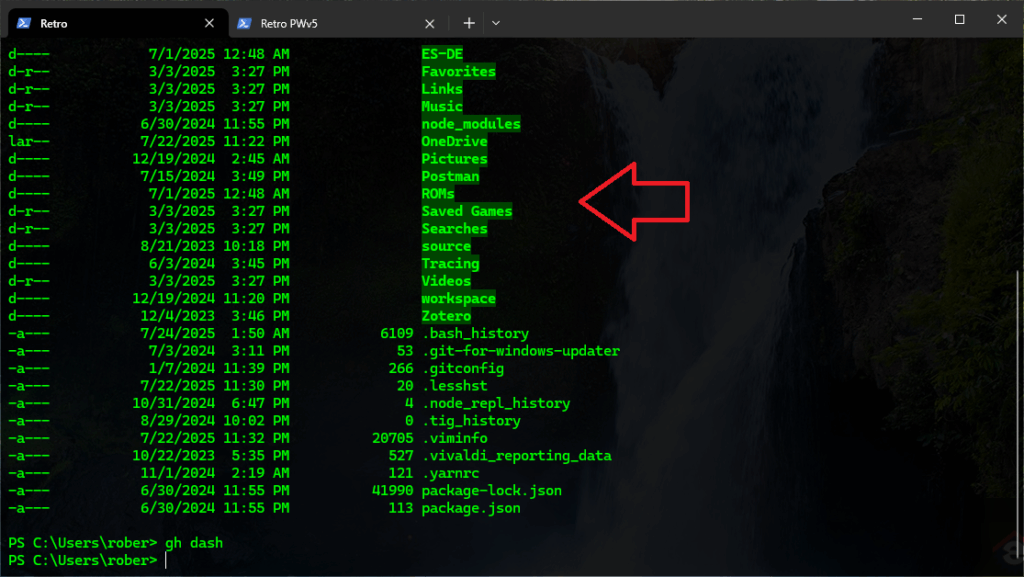
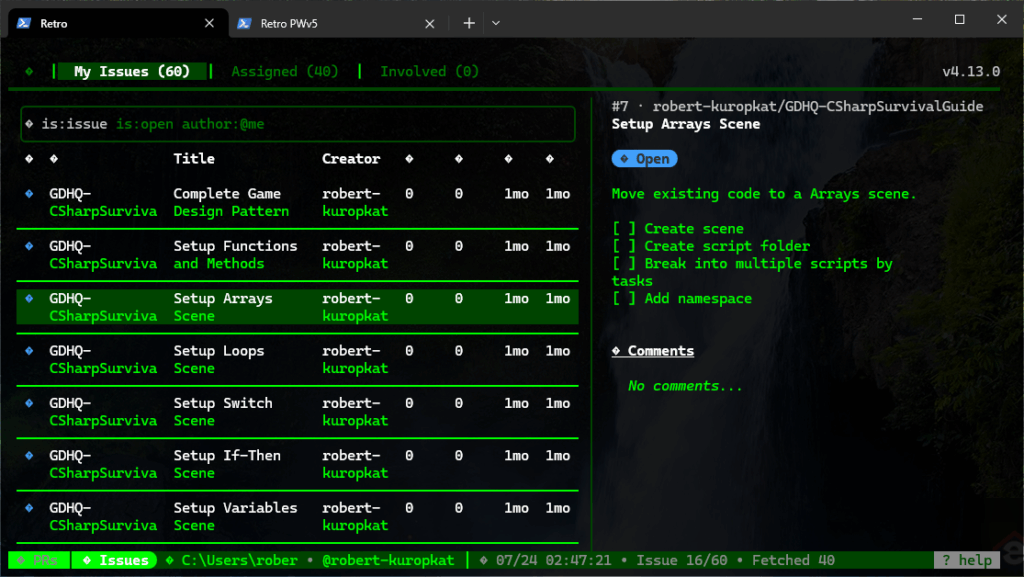
Other terminal-based applications may require additional tinkering, but as a preview of things to come, a new and improved spin on a DOS classic…
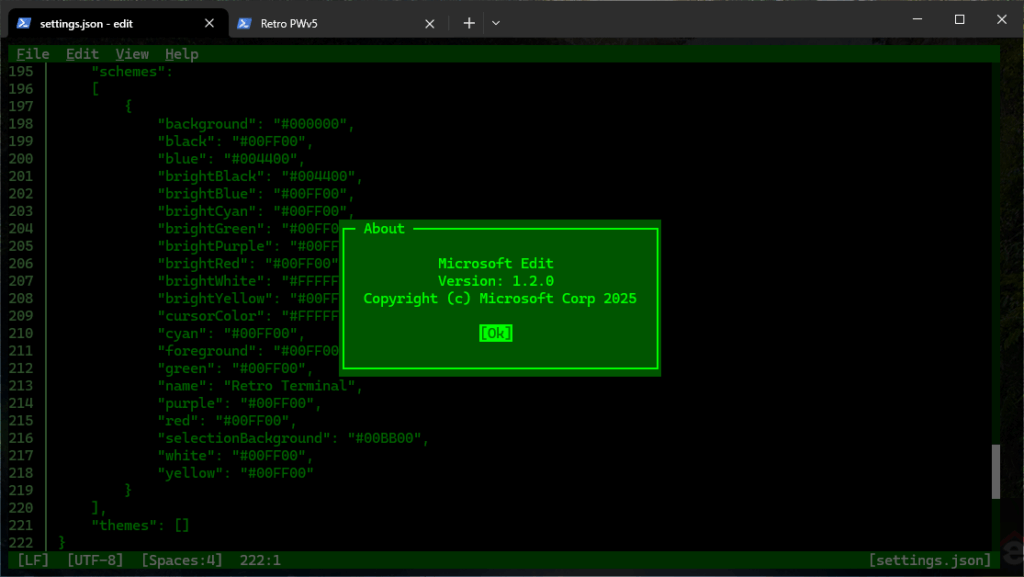
We’ll talk later about why I’m excited to see DOS Microsoft Edit came back to life…!