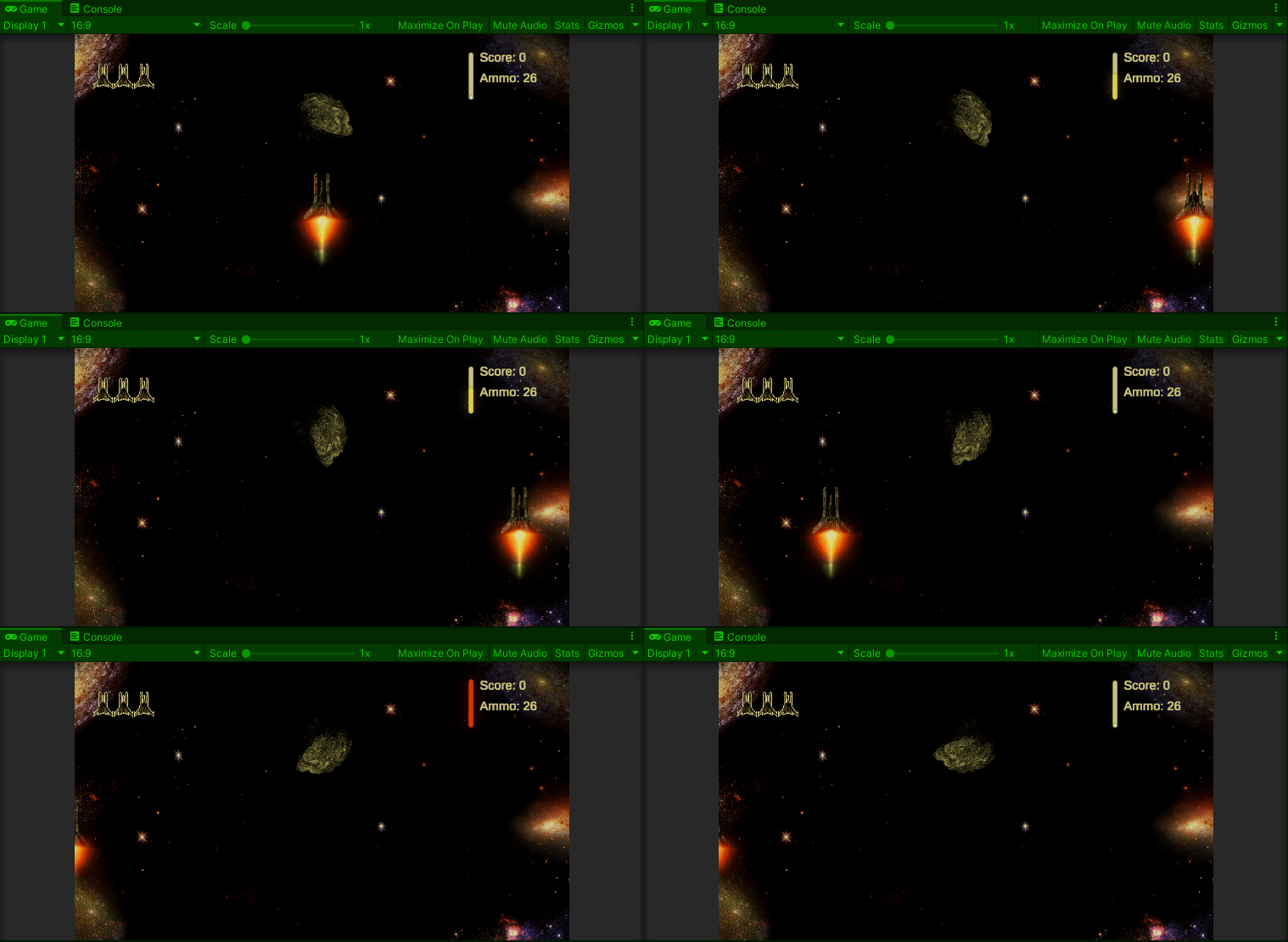

At some point I need to think a bit more about the player HUD (Heads Up Display). This would be the little UI widgets on the screen that keep score and such. It is our player’s dashboard. While I’m not going to dig too deep into it today, I do want to add a new element just to see how it works out.
Currently, our player game object has five speeds. Zero (not moving), standard speed created by pressing any of the WASD or Arrow keys, Thrusters, engaged by pressing the Arrow/WASD keys and the Left Shift key, Speed Boost from collecting the power up and Ludicrous Speed by engaging the Thrusters while the Speed Boost power up is engaged. Until now, the only visual cue on the speed is the increased speed of movement. To add to the effect, today we will create a thrust indicator. It will increase or decrease and change color in relation to the current player speed.
For now, keeping it simple, we will use a simple, built in slider. We can add it to the Canvas and position it. I chose to rotate mine 90 degrees on the z-axis so it would be straight up and down, and I removed the handle component. I could probably have just made it invisible and actually don’t recall why I removed it. I also set the Max value to 100 and selected the Whole Numbers checkbox. My intent is to just use it like a percentage.
There are a ton of settings with this component, but for now, we are ignoring almost all of them. Everything we are going to do will be in code. The code will be split between Player.cs and UIManager.cs. In short, Player.cs will track the current value of our player speed and will then tell UIManager to update the slider.
Since this is all based on the player speed, the first thing we need to do is actually track the player speed. Previously this was just calculated on the fly and not stored. So, now we need to actually store it so we can make use of it. We make a small modification to the MovePlayer() method in Player.cs.
    private void MovePlayer()
    {
        currentSpeed = 0;
        if (  Input.GetAxis("Horizontal") != 0
           || Input.GetAxis("Vertical")   != 0 )
           { currentSpeed = (mySpeed + Thrusters) * speedUp; }
        UpdateThrusterUI();
        transform.Translate(new Vector3( Input.GetAxis("Horizontal")
                                       , Input.GetAxis("Vertical")
                                       , 0
                                       ) * Time.deltaTime * currentSpeed );
    }
Originally the calculation for currentSpeed was just embedded within the transform.Translate() method call. If the player was not pressing the WASD or Arrow keys, the call to transform.Translate() does nothing and the value of currentSpeed is ignored. But now, we need to know what the current value would be if the player was moving, but we also need to know if the player is actually not moving. So now, we check first to make sure the player is moving. Then, we set the current speed value. Now, when we call our new UpdateThrusterUI() method, we can pass in the actual value of the player’s current speed.
Our new method follows and is fairly straight forward. All it does is equate each of the possible player speeds with a percentage and then calls the uiManager.UpdateThrusterGuage(relativeSpeed) method.
    private void UpdateThrusterUI()
    {
        int relativeSpeed = 0;
        if      (Mathf.Approximately(currentSpeed, 0))                                      { relativeSpeed = 0;  }
        else if (Mathf.Approximately(currentSpeed, mySpeed))                                { relativeSpeed = 25; }
        else if (Mathf.Approximately(currentSpeed, mySpeed + ThrusterIncrease))             { relativeSpeed = 50; }
        else if (Mathf.Approximately(currentSpeed, mySpeed * speedUp))                      { relativeSpeed = 75; }
        else if (Mathf.Approximately(currentSpeed, (mySpeed + ThrusterIncrease) * speedUp)) { relativeSpeed = 100; }
        uiManager.UpdateThrusterGuage(relativeSpeed);
    }
The unexpected part here was the need to use the Mathf.Approximately() function. This is due to the quirk of comparing floating point numbers. From testing it turns out that 4.6f was just never actually equal to 3.5f + 1.1.f and so certain branches never actually fired as they were supposed to. I saw some discussion that sometimes, even this method is not “approximate” enough, but it seems to be working for now.
Now that we are tracking our current speed, we need only to implement uiManager.UpdateThrusterGuage(). As you can see, it is quite simple. We set the color based on the value passed in, then set the fill bar color and value.
    public void UpdateThrusterGuage(int currentSpeed)
    {
        switch (currentSpeed)
        {
            case 0:
                thrusterGuageColor = Color.cyan;
                break;
            case 25:
                thrusterGuageColor = Color.green;
                break;
            case 50:
                thrusterGuageColor = Color.yellow;
                break;
            case 75:
                thrusterGuageColor = new Color(1.0f, 0.64f, 0.0f);
                break;
            case 100:
                thrusterGuageColor = Color.red;
                break;
            default:
                thrusterGuageColor = Color.cyan;
                break;
        }
        thrusterGuage.gameObject.transform.Find("Fill Area").Find("Fill").GetComponent<Image>().color = thrusterGuageColor;
        thrusterGuage.value = currentSpeed;
    }
In all, it took very little effort to add in this new feature. Whatever we do with our dashboard later the groundwork is laid.