

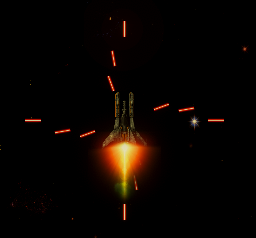
We are creating another new power up for our game, but this one is to be a bit different. It needs to be a new kind of weapon, but it should also be a “rare” spawn. That changes things.
Adding some more thought to the problem; all of our power ups to date have been immediate use upon collection. Since this is to be a new super weapon, it makes sense for us to be able to collect and store this one. Rather than having to use it immediately, we should be able to save it and use it later.
But there are many things that will be the same. First, we need to create our new power up animated icon. We will need to add it into the same spawning and collection mechanism.
Oh, and we have to figure out what the power up actually is…
What I decided on was what I am calling “Spiral Fire.” I also called it “Laser 360” at one point, so I need to clean up my code to make the naming consistent. It is a simple modification of the existing laser fire. Like the Triple Shot power up, we will make a new prefab. This one will be constructed of four lasers, each shooting in a different direction. i.e. Up, down, left and right. The super-dooperness comes from the fact we will then rotate the prefab by ten degrees and fire again. We will put this in a loop and do it thirty-six times, rotating ten degrees each time. (This is why I kept waffling between “360 Degree Laser” and “Spiral Laser” for names. One name describes how it is implemented and the other describes what it looks like.) In fact, once triggered, the firing code is very simple.
    public void FireWeapon()
    {
        if (Laser360Enabled && Laser360Armed) { StartCoroutine(Fire360Laser()); return; }

        ...
    }

    private IEnumerator Fire360Laser()
    {
        Laser360Enabled = false;
        for (int i = 0; i < 36; i++)
        {
            GameObject fire = Instantiate(laser360Prefab, transform.position, Quaternion.identity);
            fire.transform.Rotate(0, 0, fire.transform.rotation.z + (10 * i));
            yield return new WaitForSeconds(0.1f);
        }
        Laser360Armed = false;
        uiManager.DisableSpiralLaser();
    }
As mentioned above, this power up has a quirk compared to the other power ups in that it can be saved and used later. This is implemented as being “Enabled” (collected) and “Armed.” If both enabled and armed, the next press of the firing key will initiate the spiral laser.

The power up icon will be purple with the word “SPIRAL” below it and is created exactly as described for the previous power up icons.
We can collect the power up and we can fire it, but we need to fill in the stuff in the middle. In our Player.cs file we need to add the collection of the Spiral Fire power up to our OnTriggerEnter() function.
    private void OnTriggerEnter2D(Collider2D other)
    {
        switch (other.tag)
        {
            ...
            case "SpiralPU":
                myWeapons.Laser360Enabled = true;
                break;
            default:
                break;
        }
    }
As you can see, all we are doing is marking the power up as collected. In our Update() method, we check to see if the power up is both enabled and armed. We arm the weapon by pressing either the left or right Alt keys.
    private bool PlayerHasEnabled360Laser
    {
        get
        {
            if (!myWeapons.Laser360Enabled) { return false; }
            if (  Input.GetKeyDown(KeyCode.LeftAlt )
               || Input.GetKeyDown(KeyCode.RightAlt))
            {
                return true;
            } else { return false; }
        }
    }

    private void Update()
    {
        MovePlayer();
        CheckBoundaries();

        if (PlayerHasEnabled360Laser) { myWeapons.ArmSpiralLaser(); }
        if (PlayerHasFired) { myWeapons.FireWeapon(); }
    }
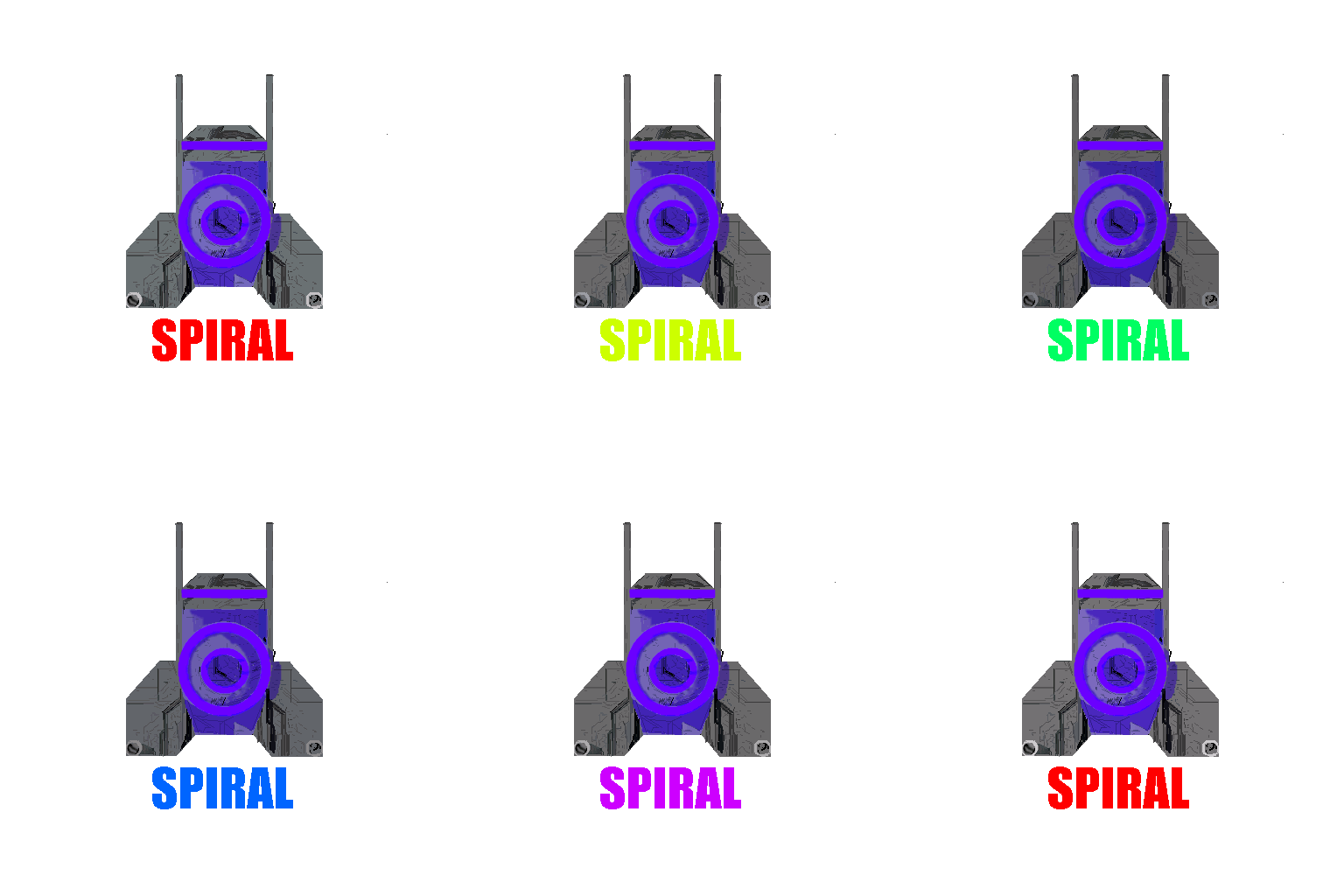
In the animation above, it goes by rather fast, but we also added a UI element. The red, yellow and white spiral means you have collected the power up. The green spiral means it has been armed and the next press of the fire key will initiate it.


Enabled

Armed
This all is a combination of the Player.cs file telling the Weapons.cs file when the powerup has been collected and armed and the Weapons.cs telling the UIManger.cs file to update the UI. At the moment, the UIManger.cs file is just enabled/disabling the image and/or swapping the enabled for armed icon.
    public void EnableSpiralLaser()
    {
        spiralLaserImage.sprite = spiralSprites[0];
        spiralLaserImage.gameObject.SetActive(true);
    }

    public void ArmSpiralLaser()
    {
        spiralLaserImage.sprite = spiralSprites[1];
    }

    public void DisableSpiralLaser()
    {
        spiralLaserImage.sprite = spiralSprites[0];
        spiralLaserImage.gameObject.SetActive(false);
    }
I suspect I will later have to do something more complex for this. As it stands right now, you can only have one of these power ups. In fact, that is the current standard for all the power ups. You can have multiple power ups active at any one time, but only one of each. If I change that, I will have to manage it. Also, if I add similar power ups (ones that can be stored for later use) I may need to do something else. But for now, we’ll leave it as is.
With all this, we had one final requirement. This power up needed to be “rare.” Previously, all our power ups were selected in an “equally” random manner. On any given spawning, each power up had an equal chance of being selected. As with anything, there are many ways to implement this. However, I feel I might easily want to rebalance even the current power up spawning. To accomplish this, we will simply set our random number selection to a wider range than just the length of the array of possible power ups and assign each power up to a specific range.
    private int ChoosePowerUpIndex
        { get
            {
                int selectIndex = Random.Range(1,51);

            if      (selectIndex > 0  && selectIndex < 10) { return 0; }  // Triple Shot approx: 19%
            else if (selectIndex > 9  && selectIndex < 20) { return 1; }  // Speed       approx: 19%
            else if (selectIndex > 19 && selectIndex < 30) { return 2; }  // Shield      approx: 19%
            else if (selectIndex > 29 && selectIndex < 40) { return 3; }  // Ammo        approx: 19%
            else if (selectIndex > 39 && selectIndex < 50) { return 4; }  // Health      approx: 19%
            else if (selectIndex > 49 && selectIndex < 52) { return 5; }  // Spiral      approx: 4%
            return 0;
            }
        }
Now, I’ll admit, there are few things I don’t like about this. First of all, I generally dislike else-if statements. However, the switch syntax I tried to use was accepted just fine by Visual Studio, but Unity complained about it. Also, I have this currently setup as a Property which may or may not be a very good choice. I did this originally because the index selection was very simple and, truth be told, I just wanted to play around with the concept. But now, it seems it would be better implemented as a standard method.
But the big thing I dislike about this is the above logic is tightly tied to the order of the elements and those elements are currently set in the Inspector. This feels icky and seems generally fragile. At one point I felt the power ups themselves should be more in control of their “rareness” but at the moment, I am okay with the idea of the Spawn Manager being the ruling body on that. I just don’t like the coupling between the Inspector and this method. So, a future iteration of this will most certainly remove that binding.
The upside is I now have a way to tweak how often each power up is spawned and I think that is a good thing.
I probably missed a couple details in this write-up but that is the most of it. While this was the most complicated power up, a lot of it was still just extending what we’ve already done. I do know I have a bit more testing to do looking for weird edge cases. I also need to do some cleanup in the Hierarchy. I got a bit sloppy with the lasers and they are not cleaning themselves up very well. But I was kinda hyped to get it working and wanted to go shout it on the mountain…!